Introducing Agenda
Agenda is an elegant new take on note taking. It allows you to be in control of the many things going on in your life and stay on top of everything important to you. It helps you become better organized and more productive. With its unique timeline, Agenda gives you a complete picture of past, present and future.
Add notes for what is currently on your agenda, while you prepare other notes for an upcoming meeting. Use older notes as breadcrumbs to remind yourself why you took the actions you did.
Time Travel through Projects
Agenda’s unique timeline approach to organizing notes gives your projects momentum. Like any good story, a project has a past, present, and future. Agenda is the only app that keeps track of each in a single stream.
What’s on the Agenda?
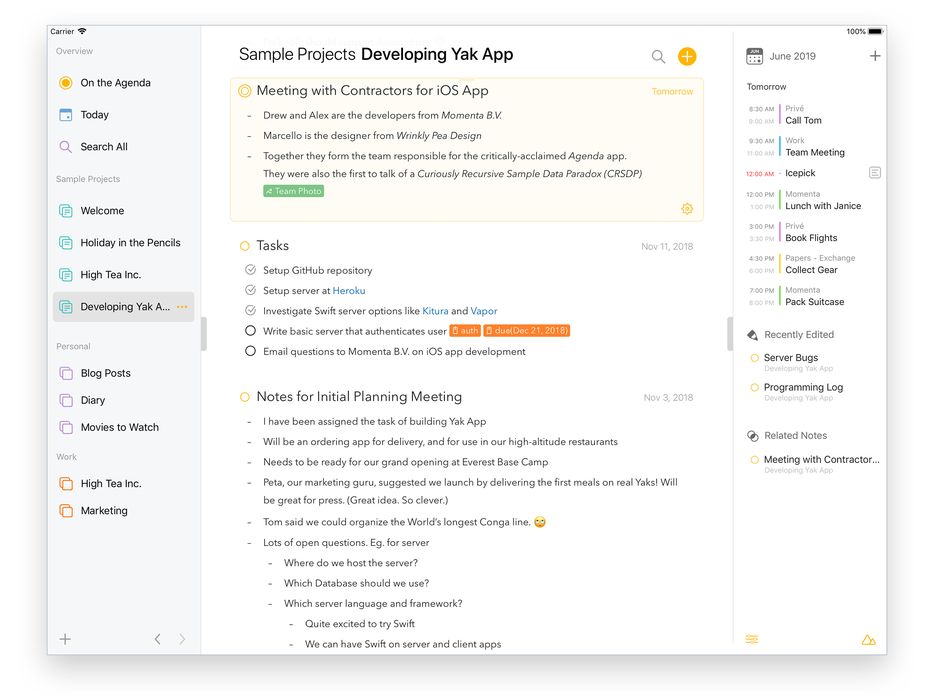
You can attach dates to individual notes, and even link them to events in your calendar. But you can also put them “On the Agenda”.
Notes that are flagged as On the Agenda are given special status. You can search for them more easily, and they get added to a special group so you can find them in a flash. Agenda keeps what is most relevant right in front of your nose.
The Meaning Full Text Editor
These days, when it comes to text editors, you can choose between simple-but-dull plain text, and visually-attractive-but-complex rich text.
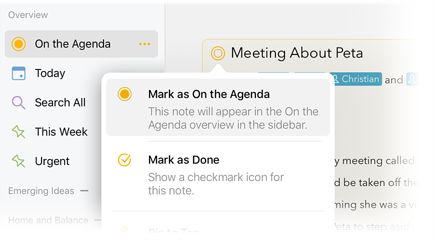
Agenda is different — it is a styled-text editor. Styled text is the best of both worlds. It is as easy to edit as plain text, but allows meaningful styles to be added leading to visually stunning documents.
Styles include headings, lists, tables, indented blocks, and preformatted text. You focus on the meaning of your notes, and leave Agenda to handle the appearance.
Styled-text results in notes that look fantastic, are consistent, and can be readily converted to other styled text formats like markdown and HTML.
Your Notes On a Date
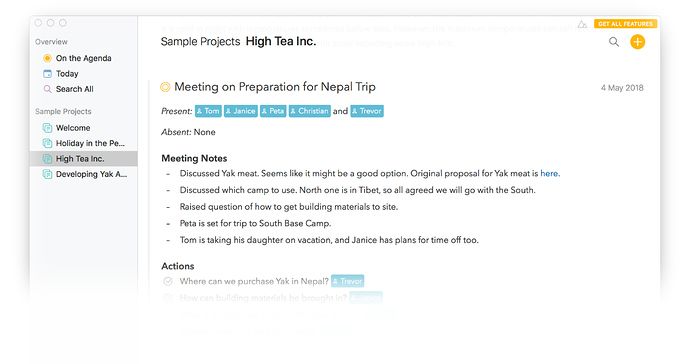
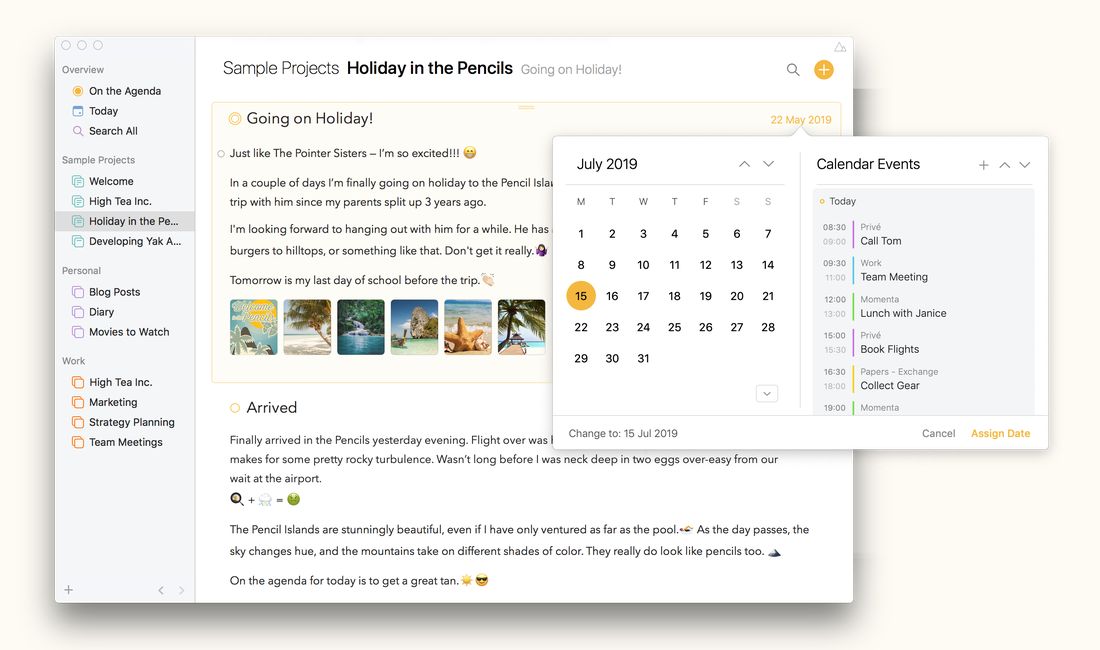
Agenda is a note taking app with a strong emphasis on time. It has full integration with Apple’s Calendar and Reminders apps. You can create and edit calendar events and reminders without ever leaving Agenda. They get attached directly to your Agenda notes, and are automatically updated in Apple’s apps, with a very handy link to get straight back to the relevant note.
Getting Attached to Your Notes
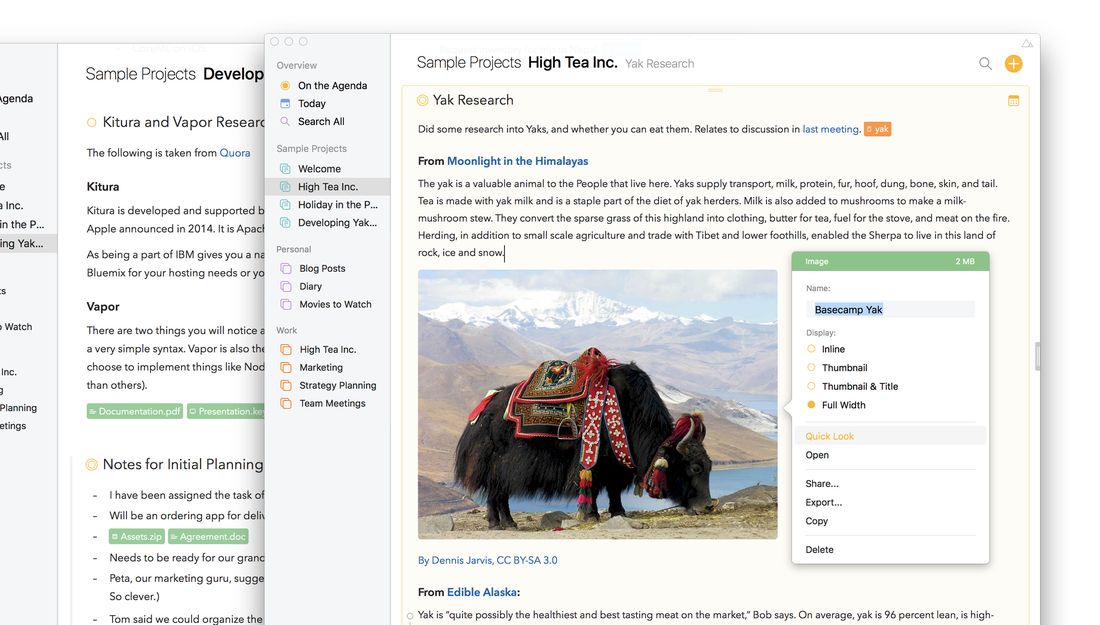
Beyond text, Agenda has support for attaching images and files, as well as linking to web sites and resources in other apps. Agenda notes bring together your project resources in one central location.
Attachments can be displayed in a variety of different ways, from compact inline tokens to thumbnails and full-width images (latter requires premium feature purchase).
Once you have attached a file or image, you can preview it, export or share it to another app, and drag it around. And it goes without saying that attachments sync up between your devices via iCloud.
Taking it to Task
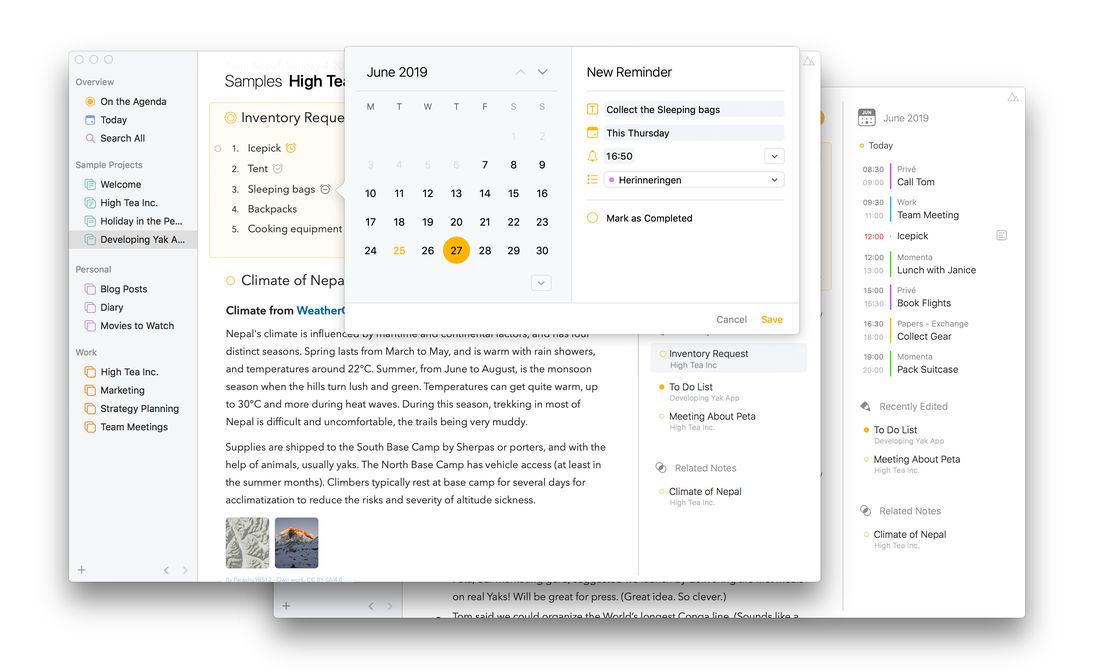
Do you sometimes find yourself using your task manager for more than it is intended? If you find yourself adding extensive comments, or entering tasks that feel more like essays, maybe you would be better with a powerful note taking app like Agenda.
Agenda is a notes app that has excellent support for handling tasks. It supports different list styles, and allows mixing tasks with more extensive notes. Best of all, your completed tasks don’t get sucked into the archive abyss when you are done with them, but are there for future reference and searching. And if you want to get reminded about the things you don’t want to miss, setting a reminder is as easy as just typing \remind, Agenda will do the rest for you.
Sharing
When it comes to ‘sharing’, Agenda has you covered on all fronts. You can share your own data between devices, using built-in iCloud or Dropbox sync. And you can share with others, whether they own Agenda or not.
To share with another Agenda user, it is best to send a note or project using the Agenda Archive file format. This is the most complete copy of the data, and they will receive a duplicate of your notes. On macOS, you can either export using the File menu, or use the Share menu to send the file to another app. Agenda for iOS has sharing options when you tap the cog button at the bottom of a note.
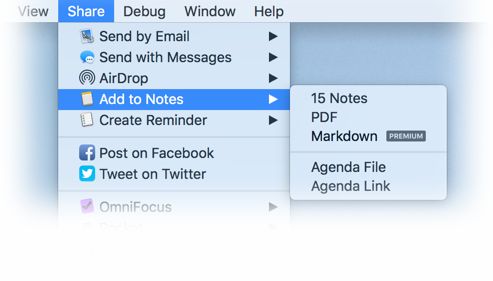
You can also share with people who don’t own Agenda, or even use Apple devices. Just convert your notes into a cross platform format such as PDF or RTF.
Lastly, Agenda integrates very well with other tools you use on your system. It comes with a powerful sharing extension to bring text, images and files into Agenda from other apps. Another powerful integration comes in the form of Agenda Links. If you copy or share an Agenda Link, you have a way to jump back to a note or project in agenda from any other app. Insert the link in another app, and click it to open Agenda at exactly the right place.
The same is true of links provided by other apps: insert them in your Agenda notes, and click them to open the original item. This also works when you drag files into Agenda. Click the link to go to the file.
How to Get Started
The chapters that follow cover Agenda’s features and how to use them, starting with The Basics.
Premium Features
Agenda is free to use on macOS and iOS for as long as you choose, at no cost. There are no time limits, but there are some premium features which you need to purchase to unlock.
The way it works is this: when you use an In-App Purchase to pay for a premium features pack, you get all current premium features unlocked, plus any features that we add in the year following. These features are permanently unlocked — yours forever.
After the year is up, new features may be added that require a new payment to unlock. You can either keep using what you have as is, or pay to get the new features. Either way, you can always download the latest version of Agenda, including all bug fixes, and you can keep using all of the features you already purchased.
Note that this is not a subscription. There is no automatic payment each year, and you are never forced to pay again to keep using the app or access your data. You always get to keep what you already have, and can decide whether you are willing to pay for the new features that have been added, or are content with what you have until something comes along that entices you to purchase a new premium pack.
But if you do want to continue to support us each year, always wanting to have access to latest premium features the moment they come out without the hassle to purchase a new 12 months of premium features if it turns out to have passed the deadline, we make it easy for you: you can opt-in to automatically renew every year and in return you’ll receive a 15% discount to thank you for being a loyal Agenda user!
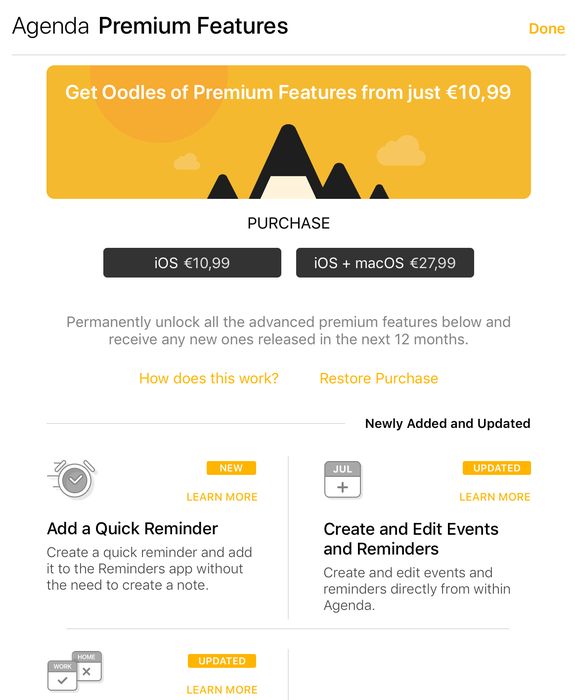
For an overview of everything included, see the Premium Features chapter.
Keyboard Shortcuts
Agenda comes with a powerful set of keyboard commands on both macOS and iPadOS. For a complete overview see the Keyboard Shortcuts chapter.
Gestures on iOS
Agenda supports a number of convenient gestures to make using the app easier and more powerful on macOS, iOS and iPadOS. For a complete overview see the Gestures chapter.